
Keep your eyes up and your notes to yourself.
A teleprompter and notes for video calls and YouTube videos. It sits just under your webcam, so you read with your eyes on the lens. Share your whole screen and the strip isn’t in it.
Try it yourself. Pick one.
Free. No ads. No account. Windows 10 and 11. On a Mac? The Mac version is in testing.
What it’s for
Anything you say to a camera with notes you’d rather nobody saw.
-
Meetings
Your talking points, in order, a glance from the lens.
-
Job interviews
The stories you mean to tell, with the numbers you’d forget under pressure.
-
Presenting
Speaker notes that stay with you, off the screen you share.
-
YouTube videos
Read your script and still talk straight down the lens.
-
Courses, podcasts and talking heads
One take, without cue cards taped round the screen.
Setting it up for a particular app? Zoom, Teams, Google Meet, Windows, a laptop, Mac or YouTube.
Three steps. The third one is talking.
Paste your notes.
Or open a Word or text file. They stay on your computer.
Put it under the camera.
One button puts the strip at the top of your screen, as close to the lens as it’ll go. Camera somewhere else? Drag it. It remembers.
Press Start and talk.
CtrlAltEnter starts and pauses it from anywhere. Your mouse clicks pass straight through the strip to whatever is underneath, so it never sits between you and the mute button or the record button.
Look at the lens, not at your desk.
Notes on your desk mean looking down. Notes on your screen mean reading with your eyes off to one side. On a call or in a video, everyone can tell.
Put them an inch under the camera and you’re looking at whoever’s watching.
The closer the words are to the lens, the less your eyes move.
Bullet points or the whole thing.
Paste from anywhere, or open a Word or text file. The app works out which one you’ve got. Bullets mean Notes.
Notes
For when you know what you want to say and just need the order. Your points sit in the strip one at a time. Tap a key and the next one moves up. Nothing moves until you say so.
Page Down next point
Script
For when the words matter. It moves a line at a time at the pace you set, and each line holds still while you read it. Faster or slower with a key, on the fly. One key pauses it. Another takes you back a sentence when someone interrupts.
CtrlAltEnter pause · 130 words a minute
Type “breathe” and the strip waits for one breath.
Put the word on a line of its own, or [breathe] anywhere. A small shape fills as you breathe in and lets go as you breathe out, then your words carry on.
- It suggests places. It reads your script and points out where you might breathe: before a new part, after a long paragraph. It adds nothing until you click.
- Start with one slow breath. Pick it instead of the 3, 2, 1 before the strip moves.
- It never listens. It works out the places from your words, not your microphone. And it’s visual only: no sounds.

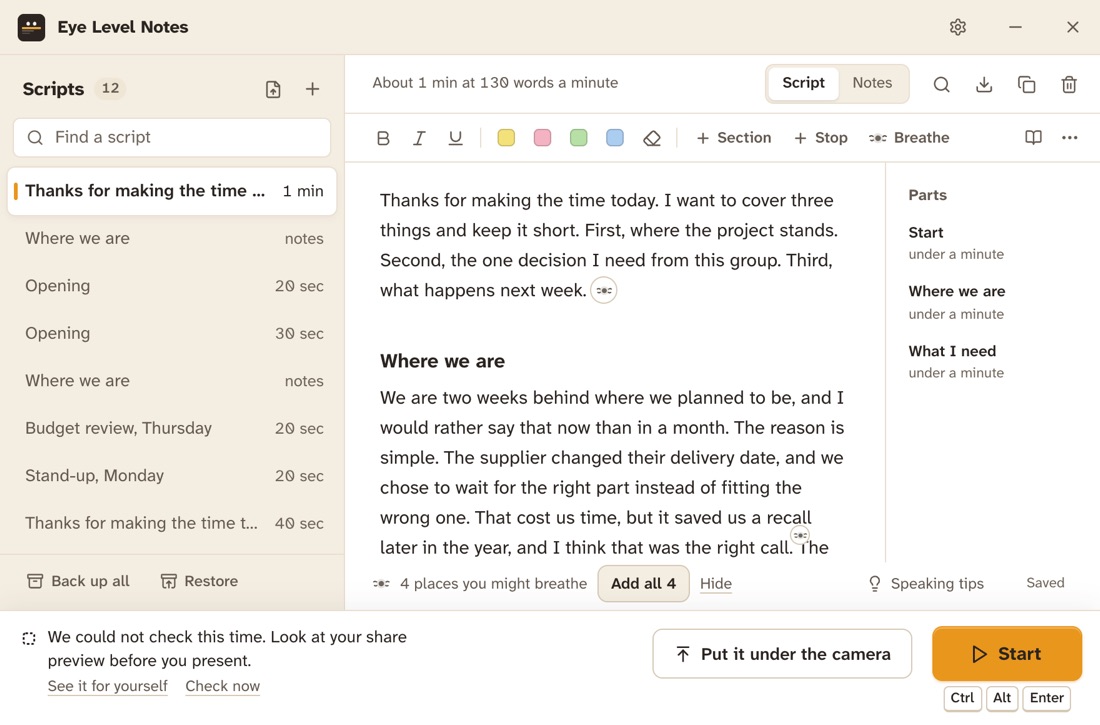
Write it anywhere. Paste it in.
Notepad, Word, Jira, ChatGPT, Notion. Plain paragraphs work. Bullet points work. A few simple marks are there for when you want a bit more: a section for each part of the call or video, a stop where you take questions, a word picked out in yellow.
An example: two sentences in a text file with one word marked for the yellow pen, and the same words on the strip with that word highlighted.
It only shows what you wrote.
It doesn’t listen to your call or your recording. It doesn’t use your microphone. It doesn’t suggest answers or write anything for you. It’s sticky notes next to your camera, except you can read them. No account. Your notes are files on your computer and that’s where they stay.
Works over Zoom, Microsoft Teams, Google Meet, or whatever you’re told to use this week. It doesn’t plug into your call app and doesn’t need its permission. Recording instead? It sits under the lens just the same.
Zoom, Microsoft Teams and Google Meet are trademarks of their owners. Eye Level Notes isn’t affiliated with any of them.
Free. No ads. No account.
Install it, open it, use it. There’s nothing to sign up for.
| Windows | Windows 10 (version 2004 or later) or Windows 11 |
|---|---|
| A call app | Any. Zoom, Teams, Meet in a browser, or whatever you’re told to use this week. Or none, if you’re recording |
| Your notes | Paste them, or open a Word (.docx) or text (.txt) file |
| An account | None |
| Mac | In testing. One email when it’s ready |
Set it up for
Eye Level Notes is a teleprompter app for calls and recording. Pick the one you’re doing.
- ZoomNotes over the call, out of your share.
- Microsoft TeamsYes, there is one.
- Google MeetIn Chrome, over the call.
- Windows PCWindows 10 and 11.
- A laptopUnder the built-in webcam.
- YouTube videosRead a script, eyes on the lens.
- MacWhat’s different on a Mac.
- In your browserA free online teleprompter, no install.
Comparing? Speakflow alternative and CuePrompter alternative.
Guides
- Teleprompter for YouTube: look at the camera, not down
Why looking down shows, and how to read a script at a desk.
- How to read notes on a Zoom call without looking down
Five ways to keep notes in view and still look at the camera.
- Can you use notes in a video interview?
Yes. What to write and where to put it.
- See your speaker notes while sharing your screen
Teams, Zoom and Meet, one at a time.
- How to breathe and pace yourself on a video call
Where to pause, one slow breath before you start, and a few cited tips for nerves.
Questions
What is it for?
Saying things to a camera while your eyes stay near the lens. Video calls, interviews, presentations, YouTube videos, course lessons. Your notes or your script sit in a strip just under your webcam, and you read from there. It shows what you wrote and nothing else.
Is it out yet?
Not yet. It’s coming to the Microsoft Store. Leave your email in the box at the top of the page and you get one message on the day it’s out, and nothing else. In the meantime, you can start writing your script: whatever you write now will paste straight in.
Can I use it to record YouTube videos?
Yes, that’s half of what it’s for. Paste your script, set the pace, and it moves a line at a time right under the lens, so you talk straight at the camera. It doesn’t record anything itself. Use it with whatever you record with. If you record your screen, the strip stays out of that the same way it stays out of a share. The guide to reading a script at a desk has the rest.
Is it hidden from screen share? How do you know?
Yes, on Windows and on a Mac. Each time the strip appears, the app takes its own capture of the screen, the way a call app would, looks for the strip, and tells you what it found. That includes “I couldn’t tell”. We can’t promise every app and setup, so before a call that matters, share your screen to a second device, or record a few seconds, and have a look. The screen share page has the steps.
Can the people on my call see it?
Not in your camera picture, ever. It’s on your screen, not in front of the lens. In a screen share the app keeps it out, as above. A phone pointed at your screen would see it, and so would a remote-support tool.
Will it look like I’m reading?
A lot less than looking down does. The strip is right under the lens, so your eyes hardly move. Notes mode helps most: glance at the point, then say it your own way.
Can I use it in a job interview?
For your own notes, yes. Same as notes on your desk, just easier to see. It won’t listen to the interviewer or tell you what to say. It’s not built to.
Does it listen? Does it use AI?
No and no. It shows the words you typed. It never uses your microphone, can’t hear the call and doesn’t come up with answers. A script moves at the pace you set, not the pace you’re speaking.
Does it work with Zoom, Teams and Google Meet?
It’s a small window that stays on top of whatever is on your screen, so it doesn’t plug into Zoom, Teams or Meet and doesn’t need their permission. Share one window or one tab and the strip can’t be in it. The screen share page has the rest.
Which versions of Windows and macOS does it need?
Windows 10 (version 2004 or later) and Windows 11. On Windows, keeping the strip out of a share relies on a setting that arrived in version 2004, and on anything older the app tells you it can’t.
Is there a Mac version?
It’s in testing. It’s the same strip under your camera, kept out of your screen share and recordings. Leave an email and you’ll get one message when the Mac version is ready.
Can it remind me to breathe or slow down?
Yes, for breathing. Type breathe on a line of its own, or [breathe] anywhere, and the strip stops for one breath: a shape fills as you breathe in and lets go as you breathe out. The app can also suggest places to breathe in your script, and adds nothing until you click. It’s visual only, so no sounds. To slow down, set the pace in Script mode and add breaths where you want to stop. The guide has the details.
How does it know where to breathe? Does it listen?
It doesn’t listen. It never uses your microphone. It reads your text and applies a few plain rules: before a new part, after a long paragraph, after about 30 seconds of talking without a pause, after a very long sentence. It uses your own speaking speed, so a slower speaker gets more. The words never leave your computer. They’re suggestions: nothing goes in your script until you click one, or Add all.
I get nervous on calls. Does it help?
A bit, and it won’t pretend to be more. You can start with one slow breath instead of a countdown. And Speaking tips, in the editor, has five tips for feeling nervous, each from a named speaker or study with a link to the source. A breath helps you feel steadier. It’s not a cure.
I don’t write scripts. Is this still for me?
That’s what Notes mode is for. Five bullet points and a key to move to the next one.
What can I paste or open?
Paste from anywhere, or open a Word (.docx), text (.txt) or Markdown (.md) file. A few simple marks in the text turn into headings, bullet points, bold and highlighter pens. Here’s how to write a script in Notepad, Jira, ChatGPT or Notion and have it come in looking right.
What are the keyboard shortcuts? Does it work with a clicker?
Ctrl+Alt+Enter starts, pauses and resumes it from any app. Ctrl+Alt with Left or Right goes back or forward a sentence, with Up or Down goes faster or slower, and with Backspace hides or shows the strip. In Notes mode, Ctrl+Alt+Down or Page Down brings the next point up. You can change all of them in Settings. A clicker isn’t supported at the moment.
Is it free? Are there ads? Do I need an account?
It’s free, there are no ads and there’s no account. No sign-up and no email. Install it and use it.
What do you collect?
Your notes stay on your computer. The app sends anonymous usage counts, like opening it and starting a script, and never the words in your scripts. There’s a switch in Settings to turn that off. If you use the feedback box, your note goes to us, and your email too, but only if you type one. This website doesn’t run analytics yet. The privacy page has the detail.
Who makes it?
The same developer who makes Green Dotter. One person. If something’s wrong, the contact page reaches him.
Try it on yourself first.
Start a meeting with nobody in it and share your screen, or record ten seconds of yourself, and see what it does. Two minutes. Then use it on the one that matters.
Windows 10 (version 2004 or later) and Windows 11.